Introduction: A+ Certification may be obtained by passing A+ Core 1 exam, and A+ Core 2 exam Note that a candidate needs to pass both the exams to obtain the certification. Linux is not included in the A+ Certification exam, as it has an exam of its own (Linux+ Certification).A brief notes on important concepts of A+ Certification Operating Systems is given in the following sections. With the latest release of A+ objectives, several topics in Windows Vista, Windows 7, Wireless networking and Security have been added.
1.1 Major Operating System components, and interfaces
1.2 Major system files, and their purpose
1.3 Frequently used command line functions
1.4 Creating and Managing Disks, Directories, and Files
1.5 Some Important Operating System Utilities
Disk Management Tools
DEFRAG.EXE:
Disk Defragmenter rearranges files, programs, and unused space on your computer's hard disk, so that programs run faster and files open more quickly. The defrag command launches the defragmentation utility from the CLI. Typing in defrag /? provides available command line options as shown below:
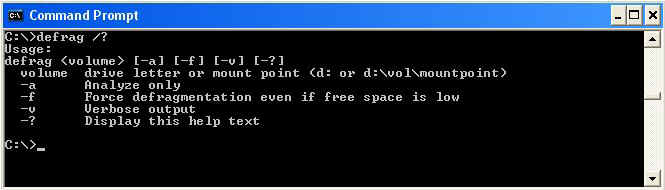
In Windows 9x, you can also run defrag from Start - Run - and typing "dfrag" command.
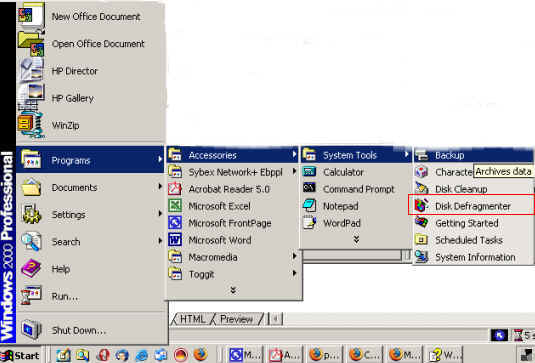
In Windows 2000/XP, you initialize defragmentation from the Start menu as shown below:
FDISK.EXE
FDISK (Short for Fixed Disk) is used very often when installing a Windows Operating System. Fdisk allows the user to create and/or delete partitions on the hard disk drive. Though the command is basically meant for DOS, Windows 9x OSes, it also used for Win XP, and 2000 because of simplicity. You can make a bootable floppy with FDISK utility, and boot a computer from floppy disk. Then run FDISK command from A:/ drive, and make hard disk partitions to FAT/FAT32. Once the hard disk partitions are made, format it, and install the Operating System. You can install all Microsoft Windows Operating Systems in this manner. However, if you want, you can convert Windows 2000/XP to NTFS format after installation is completed.
Note: When running FDISK, choose YES when prompted with "Do you want large disk support?" message. This will enable support for larger disk volumes (greater than 2 GB).
CAUTION: The command is very powerful, and if used without knowing exactly what you are doing, your system may have lost ALL its data!
Format
To be added
Backup/Restore Utility (MSbackup, NTBackup, etc)
In the following example, all files in the drive C:\MYFILES directory that begin with REPORT and with any filename extension are backed up onto the disk in drive A.
backup c:\myfiles\report*.* a:
BACKUP will display a prompt when it is time to insert the disks.
Files backed up using the BACKUP command are stored in a compacted format and not usable for normal file processing. Use the RESTORE command to recall them and store them in the normal (un-compacted) format.
Windows 2000/XP backup:
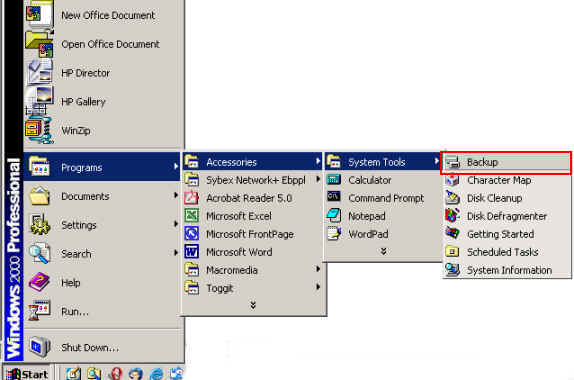
In Windows 2000, you can backup files using visual backup utility. You can fire backup utility by going to Start -> Programs -> Accessories -> System Tools -> Backup as shown in the figure below:
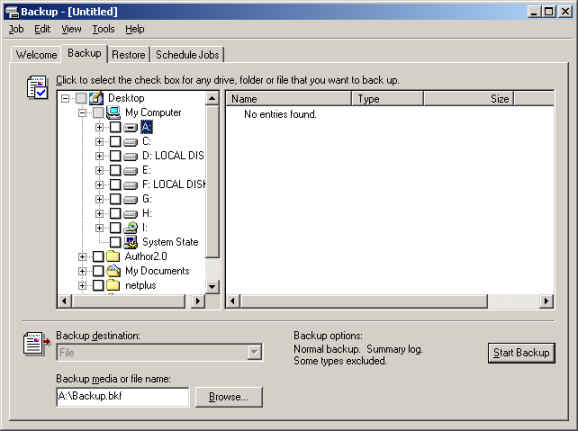
In the GUI, you can choose the files or folders that need to be backed up by checking them. When you are ready, click on "Start Backup" to start backup process.
ScanDisk
Scandisk is a disk analysis and repair tool used to check a drive for errors and correct (if possible) any problems that it finds. If any non-repairable error is encountered, it marks the cluster as bad, and prevents any date being written in to that space.
ScanDisk can be used to check for errors on the Hard disk drives, Floppy disk drives, RAM drives, and Memory cards. The ScanDisk program cannot be used with CD-ROM drives, and network drives.
To check the current disk drive, use the command "scandisk"
To check all your drives, use the command "scandisk /all" This will check all your hard disk partitions.
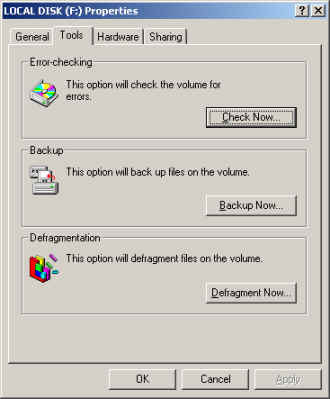
In Windows 2000/XP, you can check the disk drive by going to Windowds Explorer -Rightclick on the desired directory or folder, and then click on Properties. The Properties window, click Tools tab, and select Check Now to start disk scanning.
CHKDSK
The chkdsk command is an external command and is available in all the Microsoft Operating Systems including MS-DOS, 9x, XP, and 2000.
SYNTAX
MS-DOS, Windows 95, Windows 98, Windows ME chkdsk syntax:
CHKDSK [drive:][[path]filename] [/F] [/V]
[drive:][path] Specifies the drive and directory to check.
filename Specifies the file(s) to check for fragmentation.
/F Fixes errors on the disk.
/V Displays the full path and name of every file on the disk.
Type CHKDSK without parameters to check the current disk.
chkdsk /f = Will fix any crossed linked files;
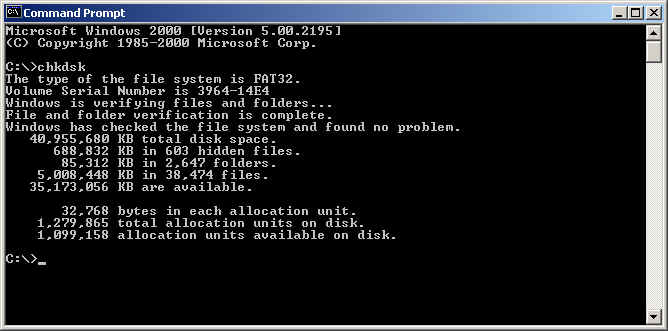
You can run chkdsk from command prompt by going to Start - Run - chkdsk or using the DOS prompt as shown in the figure below:
System Management Tools
Device Manager:
Device Manager was introduced with Windows 95 and later added to Windows 2000.
Windows 95/98/Me:
- Right-click My Computer then select Properties
- Select the Device Manager tab
Windows 2000 and Windows XP:
- Right-click My Computer then select Properties
- Select the Hardware tab
- Click the Device Manager button
Alternatively, you can invoke Device Manager by going to Control Panel -> Administrative Tools -> Computer Management, and then choose Device Manager under System Tools.
Device Manager allows you to do the following:
View the status of a device
To update/or install any device driver or
To troubleshoot an installed device
System Monitor
In Windows 9x packaged System Monitor, it's a program that is used to monitor various activities on a computer such as CPU usage or memory usage. The equivalent of System Monitor on Windows 2000 and XP is contained in the Performance Monitor.
Installing System Monitor: Setup doesn't install System Monitor when you perform a regular Windows installation procedure. To begin, insert the Windows 98 CD into the drive, and select Add/Remove Programs in the Menu. Click the Windows Setup tab, double-click on Accessories in the Components list box, and scroll down and select the check box that corresponds to System Monitor. Click OK to close the Accessories dialog box, then close the Add/Remove Programs dialog box. Windows will then install System Monitor.
To launch System Monitor, select Start -> Programs -> Accessories -> System Tools -> System Monitor.
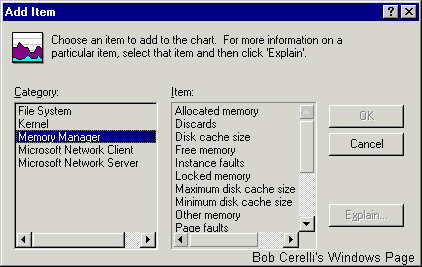
You can add an item to the System Monitor clicking on "Add Item".
In Windows 2000/XP, you can access Performance Monitor (or System Monitor) by going to Start -> Run, and type PERFMON. You will see the Performance Monitor as shown below:
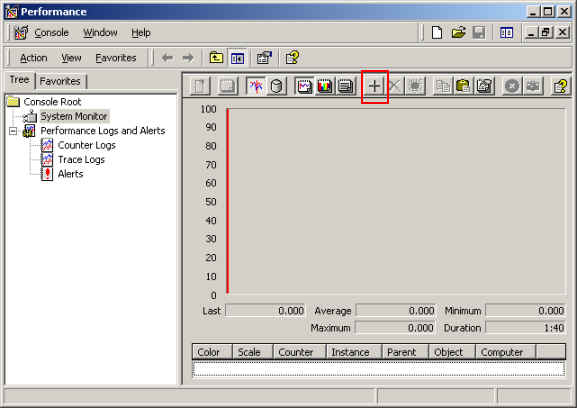
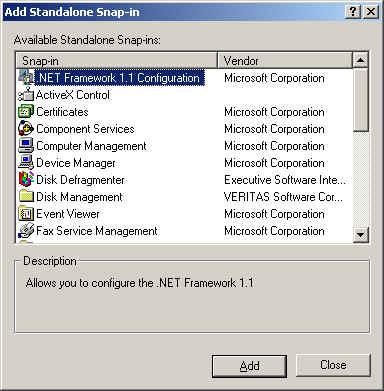
To select System Monitor snap-ins, click System Monitor, and click on the "+" sign, it will fire the following window:
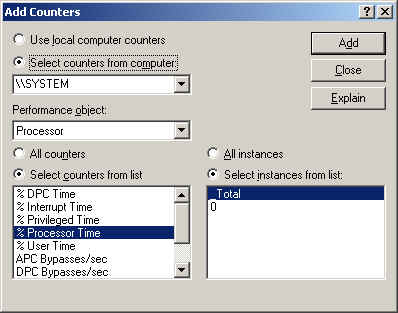
As seen in the above figure, you can add several snap-ins for evaluation, and monitoring. The Performance Monitor is a very elaborate tool, and it is recommended that you try the tool practically to become familiarized with it.
Event Viewer
Available in Microsoft Windows 2000 and Windows XP, Event Viewer logs events, errors, and other information occurring in Microsoft Windows. You need Administrative rights to access Event Viewer.
Start Event Viewer as below:
1. Click Start, Settings, and then Control Panel.
2. Within Control Panel double-click "Administrative Tools".
3. Within the Administrative Tools window double-click "Event Viewer"
Event Viewer will allow a user to an Application, Security, and System log for Windows.
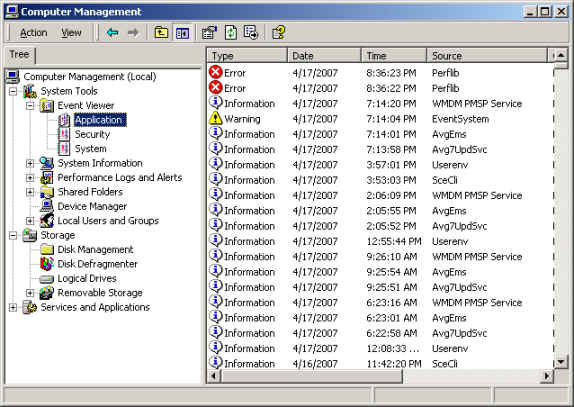
Event Viewer has three logs. These are Application Log, Security Log, and System Log. Application log shows any application related events, Security log shows any security related events, and System log will show any system related events. A typical display of Application log is shown in the figure above. The information is useful when you are troubleshooting any problem.
Task Manager
A software utility available in Microsoft Windows NT 4.0/2000/XP. It enables a user to view the tasks currently running on the computer, each of the processes, and the overall performance of the computer. The Task Manager is commonly easily accessed by pressing "Ctrl + Alt + Del" on the keyboard. Below is a visual example of the Microsoft Windows Task Manager under Windows 2000. A quicker way to access the Task Manager is to press " Ctrl + Shift + Esc".
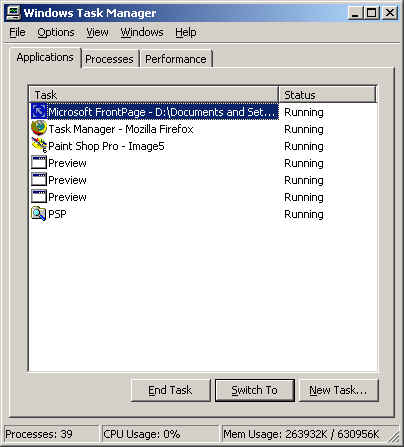
If a program is no longer responding, you can choose to "End Task" from the Task Manager to close the program without restarting the computer.
MSCONFIG.EXE
The software utility is available in Microsoft Windows 98/XP. It enables you to configure how your computer starts and what programs and/or services automatically load each time the computer starts. To start msconfig, follow the steps below:
1. Click Start and Run.
2. Type msconfig and press enter.
You need admin rights on Windows XP to use this command.
REGEDIT.EXE
To get into the Windows 95 or Windows 98 registry, click Start / Run / type regedit.
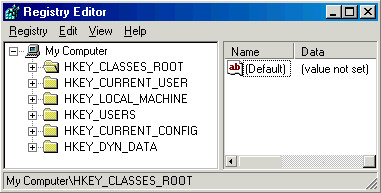
To manually back-up your Windows 9x registry, follow the steps below:
Manually restart the computer in MS-DOS prompt.
Type cd\windows
At the C:\WINDOWS> prompt, type the following:
attrib user.dat -r -a -s -h <enter>
attrib system.dat -r -a -s -h <enter>
md backup <enter>
copy user.dat mybackup <enter>
copy system.dat mybackup <enter>
The above will copy the registry files into "mybackup" directory in your Windows directory. This directory can be substituted for any directory or any other drive.
REGEDT32.EXE
Both regedit, and regedt32 are available in Windows 2000/XP.
SYSEDIT.EXE
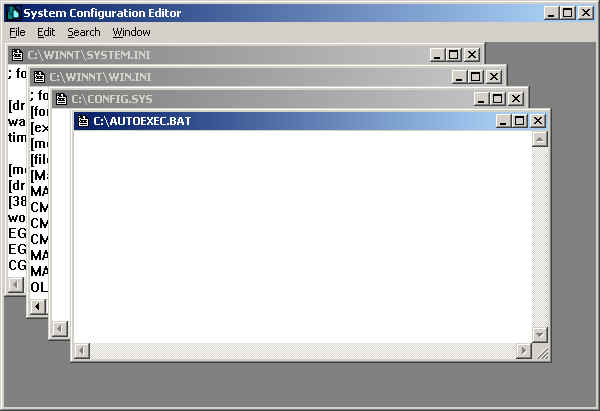
Sysedit enables you to view and edit important system files (autoexec.bat, system.ini, win.ini, and config.sys) easily. The sysedit.exe file is located in the C:\Windows\System, C:\Windows\System32, or C:\Winnt\System32 directory. The utility is available with all versions of Microsoft Windows, and can be launched using the step given below.
1. Click clicking Start and then Run
2. Type sysedit and pressing enter.
SCANREG
By default Windows 98 automatically creates a backup copy of your registry (containing system.dat, user.dat, system.ini, and win.ini).
When Windows notices a problem with your registry, it will automatically replace the registry with a backup copy. Alternatively, you can restore a previous registry manually. The procedure for the same is given below::
Start Windows in MS-DOS mode (press the Ctrl key as soon as your PC starts. This will get you the Bootup menu. Once the menu is up, choose Command prompt only)
Type Scanreg /restore at the prompt
You will get a screen where you can select which registry backup to use
Choose your backup and press Restore
When ready you'll be prompted to Restart your computer
ScanReg needs 340KB or more conventional memory, depending on the size of the registry and the amount of damage. To increase the amount of free conventional memory, start your computer in Safe mode command prompt only. Then, run Scanreg.exe with the /fix or /restore switch.
You can run scanreg using Start button. Click Start > Run and type scanreg in the Open dialog box. Windows will scan your registry, and prompts you to backup. This is useful when installing any new application, and you want to ensure that the registry can be restored to a known configuration.
Some important command line switches are provided below:
|
Switch |
Description |
|
/autoscan |
Automatically scans the registry and backs it up |
|
/backup |
Backs up the registry and related files without displaying any prompts. |
|
/fix |
Repairs any damaged portions of the registry, and optimizes it by rebuilding. |
|
/restore |
Displays a list of available backup files, sorted by the date and time the backup was created. |
COMMAND/CMD
CMD, or CMD.EXE, is the command line shell introduced in Windows NT and available in Windows NT/2000/XP. The command, when issued (Start -> Run -> Type "cmd") initiates a DOS terminal.
In DOS, the file command.com is required to run any DOS commands. However, in XP, the DOS is emulated using cmd.exe, and different from DOS shell that runs on command.com in the previous versions of Windows..
File Management Tools
ATTRIB.EXE
Attrib allows you to change the properties of a given file. A file may have the following attributes:
Read-only - the file can only be viewed and not written to.
Archived - enables any backup program to backup the file when set.
Hidden - the file is invisible when this attribute is set.
System - used for system files.
Syntax: ATTRIB [+R | -R] [+A | -A] [+S | -S] [+H | -H] [[drive:][path]filename] [/S]
+ Sets an attribute.
- Clears an attribute.
R Read-only file attribute.
A Archive file attribute.
S System file attribute.
H Hidden file attribute.
/S Processes files in all directories in the specified path.
Example:
attrib +h config.sys - This would make the config.sys hidden,
attrib config.sys will show the hidden file. Alternative, you can also give the command
attrib -h config.sys to view the file in the list.
EXTRACT.EXE
The Windows extract command is used to extract files that are compressed in to a Windows Cabinet file and place them into a specified location on the hard disk drive. The command is available in all Windows Operating Systems.
Edit.com
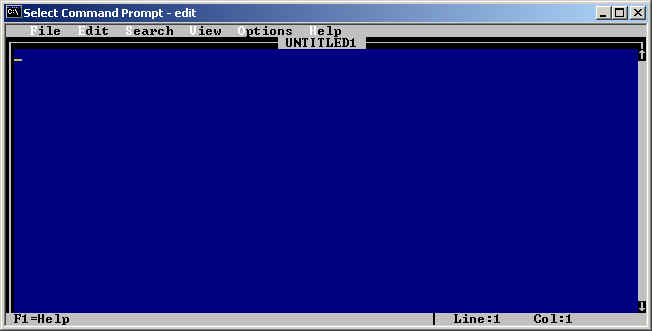
Edit allows a user to view, create and or modify their computer files. The command is supported by DOS, and all versions of Windows Operating Systems. This is one of the earliest text processors, and Microsoft is supporting this utility in later versions of Windows. A screenshot is given below:
Example:
edit c:\autoexec.bat
The above command will open autoexec.bat for editing.
Windows
Windows is an Operating System created by Microsoft. There are several versions of Windows OS. These include Windows 3.1, Windows 9x, Windows XP, Windows 2000, Windows ME, Windows XP. All these OSes have Graphical User Interfaces (GUI) that is intuitive to the user. The advantage using GUI over DOS is that you don't need to remember and type commands at the DOS command prompt.
Download practice tests:
Download Sim-Ex™ Practice Exams for A+ Core 1
Download Sim-Ex™ Practice Exams for A+ Core 2
Related practice tests:
Sim-Ex™ Practice Exams for Network+
Sim-Ex™ Practice Exams for Server+
Sim-Ex™ Practice Exams for Security+
Disclaimer: Simulationexams.com is not affiliated with any certification vendor, and Sim-Ex™ Practice Exams are written independently by SimulationExams.com and not affiliated or authorized by respective certification providers. Sim-Ex™ is a trade mark of SimulationExams.com or entity representing Simulationexams.com.A+™ is a trademark of CompTIA® organization.