To install and use any practice tests, download the tests from simulationexams.com. The setup first installs the Integrated Test Environment and then the specific practice test. Please note that both the Test Engine and the Practice Test Module are integrated in a single download, and there is no need to download them separately.
Running the setup (exe file):
The example show installation of A+ Core 1 practice test module, and it should be similar for any other test module unless otherwise specified. Download the file (a single .exe file), open the folder to which the file was downloaded. Double-clicking the setup file will popup a message box asking confirmation for installation as shown below.
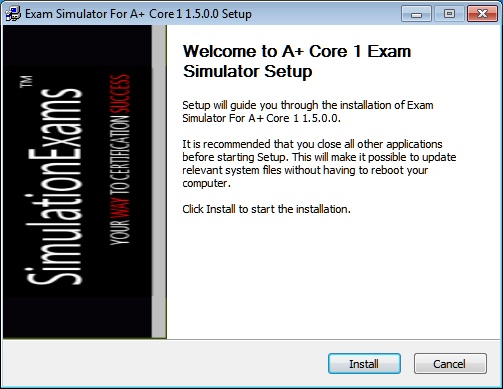
Clicking "Install" will start the installation wizard as shown below, running the practice tests need Integrated Test Environment. Setup will check for Integtared Test Environment and will inform if it is not found.
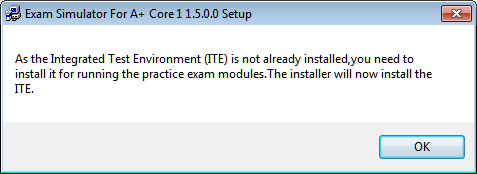
Click "OK" to proceed with the installation.
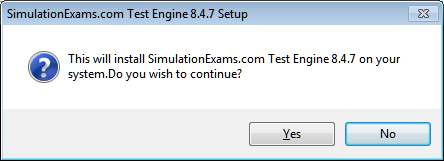
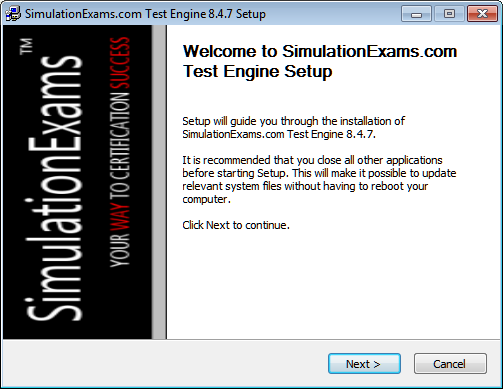
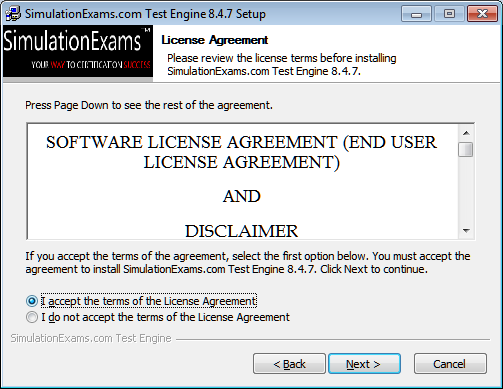
Clicking "Next" shows the License agreement that the user must accept to continue, so click on the radio button to accept and click "Next"
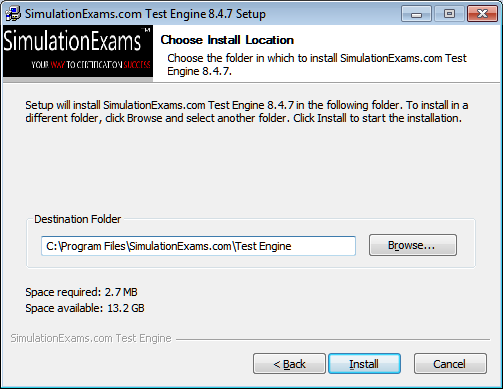
Next step allows the user to choose the location to install the software. User can browse to desired location or install the software in default location provided.
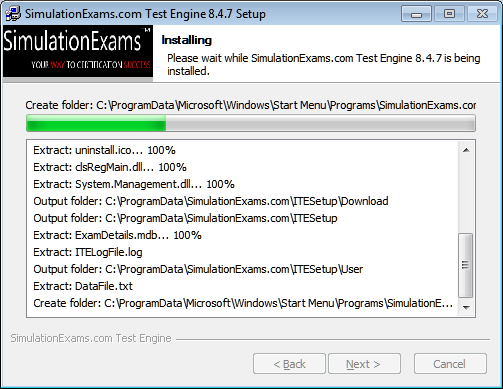
On clicking "Install" Integrated Test Engine will be installed on specified location. The progress of ITE setup installation is as shown
Once the Integrated Test Environment is installed Practice Test installation will continue. Final step of the installer allows the user to run the application directly.
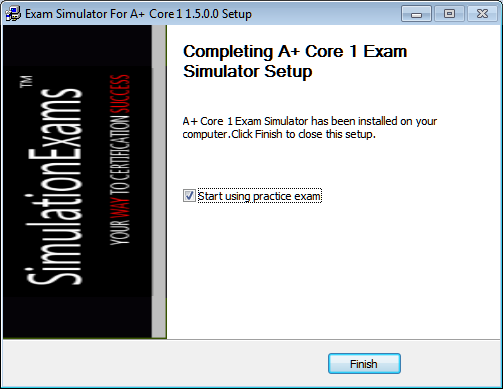
Click "Finish" to complete the installation of the software.
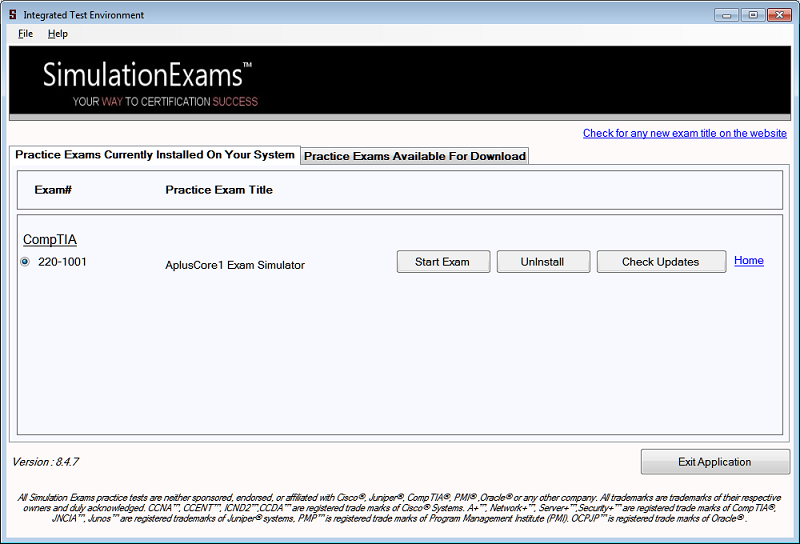
After successful installation, the Integrated Test Environment along with the installed practice test is shown as below
Please email support at simulationexams.com for any suggestions or comments.
Practice test for ccna, a+ core 1, a+ core 2, network+,Server+ ; and more!
Disclaimer: Simulationexams.com is not affiliated with any certification vendor, and Sim-Ex™ Practice Exams are written independently by SimulationExams.com and not affiliated or authorized by respective certification providers. Sim-Ex™ is a trade mark of SimulationExams.com or entity representing Simulationexams.com.